When Apple announced the new iPad last week, Phil Schiller made a point of highlighting it as a replacement for the 600 million PCs that are over 5 years old.
While I like that Apple is pushing the iPad a PC replacement – for many people it is (including myself, mostly); I do think that people still using a 5 year old PC are likely to be in the ‘technologically conservative’ camp and will therefore run up against limitations if they tried to use an iPad as a replacement.
For example:
They may still have an older generation of iPod or MP3 player that needs to sync with a PC.
They may still buy CDs, and want to rip them so they can play them on such an MP3 player.
They may want to print things, and seeing as they have a 5-year old PC, they probably don’t have a wireless printer.
They might own a lot of legacy media such as video tapes and vinyl records. They may want to use a USB conversion device to modernise this media, which won’t be supported on iOS.
iPads still need iTunes in the event of an unsuccessful update, although rare, having to drive to an Apple Store or relative’s house to restore an iPad would be very inconvenient.
Not to mention that the cheapest iPad Pro with a keyboard cover is an extraordinary £628.00!
Yes, it has many, many benefits over a PC – low maintenance (the only real maintenance iOS devices require are OS updates and managing the puny amounts of storage they have) – and best of all there’s no antivirus software or other crapware preloaded.
So nice a nice idea, but in reality anyone who hasn’t updated their PC in 5 years probably isn’t going to blow £628.00 on a device that isn’t a dead cert to cover all scenarios. Also I’d expect a £628.00 laptop to have more than 32G of storage.
I’m not a heavy Facebook user, I’ll check it a couple of times a day, perhaps a bit more if I’m on holiday and using it to check into places. For this reason I have the ‘Background App Refresh’ option turned off in iOS settings (under Settings > General). Despite this, when I looked at what was using up all of my battery, I was surprised to find that the biggest offender was not only Facebook, but it was background activity as well!
I suspected that the app was receiving lots of ‘silent notifications’ which can cause the app to wake up and start fetching data in the background, regardless of the ‘Background App Refresh’ setting. To counter this, I decided to uninstall Facebook, wait 24 hours and then reinstall it. Upon launching it for the first time after reinstalling, it asked if I wanted to receive notifications. This time I chose “Don’t Allow”. This means the Facebook app won’t get access to a unique token enabling it to send those silent notifications which I guessed were causing all of this background activity.
Sure enough Facebook is now reportedly using less battery, and none of it is background usage. Waiting 24 hours between deleting the app and reinsalling it is important because otherwise iOS will simply remember your previous notification settings, and not ask you if you’d like to allow them again.
This is based purely on my anecdotal usage, I’d love to know the actual machinism that causes this improvement
I’d been having problems with BT Infinity for a few months. Every so often web pages would just hang, or streaming video would freeze. Oddly it would often coincide with a new certain devices connecting to the network. Frustratingly, my connecting to Wi-Fi with my work laptop (Dell Latitude, Windows 10) would cause the Internet to stop working for a good half an hour.
I phoned BT and found their helpline very unhelpful. When asked to unplug the router overnight, I asked why this was needed and was told ‘it’s technical’. Throughout the process I felt as though I was just being read a script and not being listened to.
Anyway, I had managed to get my work laptop connected and had hooked into my company’s VPN when all the devices in the house stopped working again. My phone, the Apple TV, Kindles – all except for my work laptop. How odd. When I disconnected from the VPN, it too started to not work.
This made me think to try using Google’ DNS instead of BT’s. To my surprise, the Internet started behaving like a 70Mb/sec Internet connection should for the first time in months. My next step was to log into the painfully slow BT HomeHub router to try and change its DNS settings at the network level, rather than for each and every device. It turns out BT have restricted that, because normal people can’t be trusted to change their DNS servers, it seems.
After doing some digging, I discovered that the Apple Airport Express base station I’d been using to extend the range of the wireless network could be used as a NAT bridge and in place of the BT Homehub. I found this helpful post on the BT Forums which I will recap here incase BT decide to shut down or move their forums.
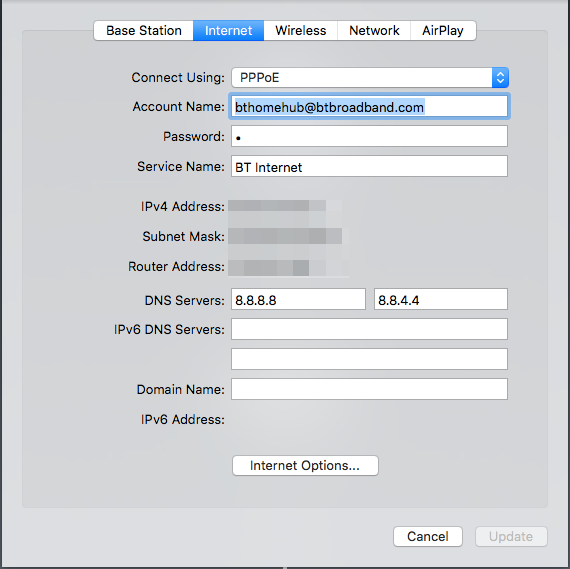
In short, you plug in the Ethernet cable from the white BT Openreach box into the WAN port on the Airport. Your username can be anything @btbroadband.com (I’m sure BT don’t rely on this for actual authentication, that’s tied to your line) and your password is simply a space.
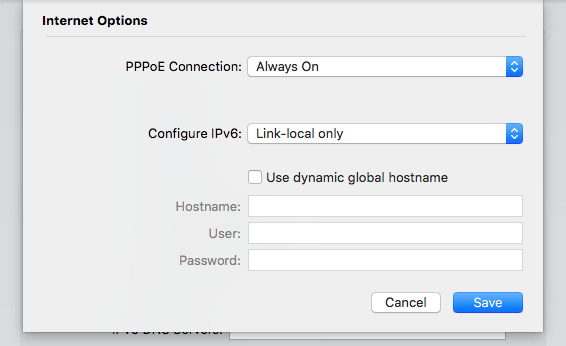
You can then use Google’s DNS servers in place of BTs. One extra thing I had to do was set IPv6 to be ‘local link only’ under ‘Internet Options’.
This setup allowed me to retire my BT HomeHub for good, and the Internet connection has been flawless ever since. My Kindle can even connect, which is saying something.
Oddly, the default IP range for the Airport’s DHCP server is Class A, which means your devices won’t have the usual ‘192.168.1.X’ scheme, but this can be changed if needed. You can change this under the Network > Network options tab, though there really is no need other than it being a more common practice.
So it seems iPad sales have fallen for yet another quarter. As someone whose iPad is their favourite computer; on the one hand this surprises me – why wouldn’t everyone and anyone want one of these fabulously useful and fun gadgets? But on the other hand I can absolutely see why many people wouldn’t have a space for this relatively expensive, yet limited device in their lives.
The problem is that a tablet does some things really well: browsing the web, watching videos, taking notes, editing photos. It also does some things very poorly: you can’t import music purchased from someone other than Apple into your music library (iTunes Match) for example and the apps are in general baby versions of their desktop counterparts. Need to rotate, annotate and save a PDF? Create a PivotChart? Have two Word documents open at the same time? You’re out of luck.
Most people don’t create
The iPad’s big differentiator is that unlike an iPhone, it can actually be used to create content (By content I don’t mean social network updates!). Witness the suite of applications Apple provide for free or next to nothing; GarageBand, iMovie, Pages, Keynote and excellent apps like Pixelmator, which is the only image editing application I’ve ever been able to comprehend (I even managed to ‘photoshop’ someone who was in from one photo and place them into another, while making it look convincing). The problem is, most people don’t create content very often. Outside of work and school (where people obviously do), most people’s computing needs boil down to what is the quickest and most comfortable way to consume content. The iPhone’s success in business was dominated by it’s consumer success (the so called ‘consumerisation of IT’) but the iPad hasn’t followed this because for most people, the phone is simply ‘good enough’ to check Facebook, lookup that recipe or watch Netflix.
The phone is the best compromise, for now
Most people have learnt this over the last four years of iPad usage. The iPad isn’t better than a phone at the ‘phone’ things people do (Facebook, messaging, email) and it’s not better than a laptop at the ‘create’ things people do (with all the edge cases these entail). If you’re going to put down £400 or more on a new computer, why would you buy an iPad when you know it’s not going to replace your aging laptop and you’ll still need to replace that thing when it dies too. So most people buy new laptop instead, and that would seem like a smart decision to me.
Phone sales remain strong and this is because the phone is currently the best compromise for mobile computing. A small screen with lots of sensors and are useful while you’re out and about – camera, GPS, compasses etc. The iPad is a more enjoyable and productive device to use than a phone because of it’s larger screen size, but that also means it can’t replace a phone because nobody wants to carry a large bag on them at all times. It’s not an ‘always with you’ device. The phone is therefore the best compromise between having a nice big screen, and having something that is always on your person. Will this always be the case however? Once smartwatches are able to connect directly to cellular networks and don’t need to be tethered to a phone, will they be able to take on the role of ‘always with you’, for messaging, directions, checking headlines etc? If this happens then what do we need the phone for? It’s no longer necessary to have this compromise of a smaller screen. In this case, would people decide that a watch and an tablet (or laptop, if the iPad or its competitors haven’t improved its software yet) will take on the roll of web browsing, Netflix and Facebook, fulfilling the rest of their computing needs? I could quite see myself using just a watch and a tablet, if both devices progress in the right directions over the next few years.
Recent changes to the A329M have been completed, to much disapproval from local residents, including myself. At peak times, what was a 15 minute journey from Winnersh to neighbouring Bracknell can take over twice as long as it once did.
What has changed?
The A329M was until recently a two lane ‘duel carriageway’ that ran all the way from Reading to Bracknell. The A329M was originally intended to directly link the M4 to the M3, but these plans were scaled back in the 1970’s, no doubt due to costs (and you can bet local residents probably weren’t too happy about another new road being built through their town either). What’s changed recently is that just after the Winnersh junction, the left-hand lane has been turned into dedicated slip road to enter the M4, with the first exit taking you onto the M4 towards London, and the latter taking you onto the M4 towards South Wales. No longer is the A329M a duel carriageway for its entire stretch.
This has caused two problems:
Traffic jams for those who want to stay on the A329M and head towards Bracknell.
Increased ‘last minute’ lane changes by drivers who are unfamiliar with the new layout, or decide to change lanes at the last possible moment, one assumes to avoid sitting in the traffic jam (see problem #1). Many feel this is dangerous.
But why was this change made in the first place? The reason is that trying to join the A329M Bracknell-bound from the M4 could frequently take a ludicrous amount of time, often over 20 minutes to travel a what can’t be much more than a quarter of a mile along the M4 > A329M slip road. I know this because in a previous life, I used to take this journey daily. I also know many other people who travel from Reading to Bracknell via the M4 who shared this experience. One day a friend suggested that instead of leaving the M4 and keeping right to go towards Bracknell and sitting in the traffic jam, I should instead take the left lane back towards Reading, traverse the A329M back up a junction, exit at Winnersh and get back on in the Bracknell direction. To my surprise, this was actually about 50% faster than sitting in the queue to get on to the Bracknell-bound A329M directly from the M4. I would often do this and take note of a distinct HGV or van, so as I cruised by on the A329M I could look over at the traffic jam on the slip road and see how far the queue had progressed. The HGV would usually only have made it halfway through the queue.
So it is clear to me that there was a problem to be solved. The Highways Agency were not having a jolly when they decided to make this change, they had to do something – if it was quicker to take a ~2 mile detour to Winnersh and back than take the slip road, something was clearly very wrong.
So rather than simply moaning at the Highways Agency, I wondered what could actually be done to solve the problem? How does one even measure that a problem like this is solved? As the quote goes “You can please some of the people all of the time, you can please all of the people some of the time, but you can’t please all of the people all of the time”. Until we all go to work in automated, computer-controlled flying drones, there is always going to be some congestion as everyone decides they want to get to work for exactly the same time as everybody else each day.
Please bare in mind I approach this as someone who is interested in problem solving, but with no expert knowledge in large construction projects (I build software for a living, not roads) – but I thought it would be a fun thought experiment if nothing else.
How to solve it?
Our first problem – the traffic jam. This would seem to be caused by the fact that the volume of traffic (that’s us, traffic is just another word for people, remember) is too great for the road. How could this be solved, while not reverting the M4 > A329M junction back to it’s untenable situation?
The problem is that people actually get into the right-hand lane too early. I understand why they do this; to stay safe, it’s polite, and because the road signs encourage drivers to do so. However, from a pure ‘volume of traffic’ point of view, if we could encourage people to use the both lanes right up until the last minute, and to merge in an organised and safe fashion, studies show this would reduce queues because it makes use of the full capacity of the road.
This brings us to our second problem – aren’t those last minute lane changers dangerous? Obviously if you’re reversing up a slip road then you’ve left it a little too late, that is dangerous. Surely there’s nothing wrong in theory with changing lanes at the last moment, as long as it’s a considered manoeuvre? In order to encourage this, I would suggest that instead of going to the M4, the left-hand lane ends up merging into the right-hand. This gives drivers in both lanes the responsibility to merge. At peak times a speed limit would need to be lowered to 40MPH (enforced by average speed cameras) to aid safe merging, and also to help drivers in the right lane refrain from powering straight into the slower moving traffic that’s entering from the M4 further down, braking hard and causing tailbacks as the breaking forms a wave that spreads along the rest of the road. They may be unpopular, but variable speed limits have used to good effect on M25.
In Summary
The left-hand lane would have two distinct exits (instead of trailing off to the M4).
The land-hand and would merge into the right-hand lane.
During peak times a variable speed limit of 40MPH would be enforced.
I’m sure that much greater minds at The Highways Agency have considered this (and I say that respectfully). There is sure to be a reason why this wouldn’t work. I’d love to know. I can’t imagine how difficult it must be to try and keep all of us road users happy. I hope the problem is addressed, but for now my real-world solution has been to set off on my journey 30 minutes earlier and avoid the rush.
A couple of months ago Apple Pay was finally enabled for my bank account and credit card, which meant I was finally able to pay for things by either placing my phone on the card reader, or by bashing my watch against it instead.
I look forward to a day when I can leave the house with nothing in my pockets – my watch will have a cellular radio and be capable of keeping me in contact with the people that matter, so too will it allow me to unlock my car/house, in addition to letting me pay for things. While the first two in that list might be a few years away (decades at the rate I upgrade cars), my watch can actually make payments today, how cool is that?
The reality is somewhat less cool. The problem is the payment limit. Since Apple Pay uses the existing ‘Contactless’ payment systems, it’s also hampered by the same £20 limit. While this limit makes sense with a contactless debit card (there is zero authentication), both the Apple Watch and iPhone are secure; the iPhone asks for your fingerprint, and the watch asks for a PIN when you first put it on, as long as it says in contact with your wrist it is authorised for Apple Pay.
This authentication is also a hindrance – why would I fiddle about trying to get my phone to detect my fingerprint (while everyone in the queue is staring at me) or roll three layers of sleeve up to try and get my watch to be recognised when I can whip out my wallet and tap my debit card? The key point is that I still have to have my wallet on me in case the shop in question doesn’t support contactless, or the amount comes to over £20. Don’t get me wrong, Apple Pay is much better than entering a PIN, it’s just not as fast as tapping your card.
So what needs to happen? I’d like to see the limit raise for Apple Pay purchases to something more reasonable, most cash machines allow you to take out £300 in a day, so why not the same for an arguably more secure system such as Apple Pay, while keeping existing contactless limits where they are of course
The iPad Pro is now available, with its much larger screen. Admittedly I haven’t had a chance to try one yet, and having only purchased a new iPad last year, I probably wouldn’t consider such a purchase so soon anyway. But as someone who does try and do real work on an iPad, (I enjoy stepping away from my desk from time to time to focus in on something, and the iPad is perfect for this.), I am not frustrated by the iPad’s lack of screen real estate (though I’ve no doubt more is better, it usually is) but by its limited software.
This ‘limited software’ is not always the fault of Apple, developers purposely try and simplify their iPad releases in an effort to route out the bloat that dogs their desktop equivalents. This is mostly a good thing, as someone who runs complex software projects for a living, I am always a proponent of the KISS philosophy (Keep It Simple, Stupid). However, there haven been numerous times when I’ve had to walk back to my desk and grab my laptop because something just isn’t possible on an iPad.
Take Microsoft Excel. The desktop version may be a horrible, bloated and full of legacy code (it seems to have its own rules on when to wipe your clipboard unexpectedly), but to its credit, it does make a lot of complex, routine tasks very quick and easy. If I have a list of stuff and I want to remove duplicates, it’s one click. If I have a CSV file (or values separated by another delimiter), converting this to columns is only 2 or 3 clicks. None of this functionality exists in the iPad version. Microsoft OneNote on the iPad doesn’t have Outlook integration (the ability to pull in meeting details), and while Microsoft have recently added support for audio recording to OneNote, it’s modal - meaning I can’t take notes while I am recording - which is one of my favourite features of the desktop version, because it synchronises your note with the timestamp of the audio recording, meaning you can quickly seek to important parts of a meeting when you’re trying to remember what was going on. Again, back to my laptop.
I don’t want to pick on Microsoft, they make some of the highest quality iPad software out there, and I know all too well that quality, time to market and the number of features are all opposing interests, and Microsoft has made the decision to go for quality over features. There’s nothing wrong with that, in fact it’s the best decision they could have made in my view, but it doesn’t change the fact that the iPad just can’t do these seemingly simple things a laptop can. Adobe and Apple both have examples too. I was sent a wireframe that had been hand-drawn and had been scanned and emailed directly from a networked printer/scanner. I wanted to annotate the resulting PDF. On the Mac I would use Preview, on Windows I’d use Adobe’s Reader application. Preview on iOS doesn’t support annotation, so I used the Adobe Reader app for iOS. It did support annotation, but due to the way the image had been scanned in, it was upside down. Surprisingly, there was no way to rotate the PDF. Back to my laptop, again. Yes with a little help from Google, I’m sure I could find an app that lets me rotate a PDF, but will it also support all the other things the Adobe app does? The bottom line is, it’s not feasible to go on an app hunt every time one of the simplified versions of an app comes up short. When Steve Jobs introduced the iPhone in 2007 he made a big deal out of the fact other smartphones only showed you the ‘baby web’ and the iPhone didn’t - we have the same situation on iOS now, we get baby applications.
Then there is the inability to have more than one document open at once. I can now have Twitter and Pages open at the same time, but not two Pages documents. Even just a way to quickly switch between documents would be nice. At the moment I have to close the first document, find the other one (navigate a long list of files and folders), load it (and wait while it loads), and then repeat the process when I want to return to the original document. Writing one document when referring to another is not an uncommon computing task, and yes there are workarounds like exporting one of them as a PDF and opening it in a separate application, but this isn’t very clean, and what if I want to edit both documents?
I don’t want to take way from the iPad what is is great at; web browsing, writing this blog post, simple spreadsheets, reading books, playing games, managing email, task lists - the list goes on. While I’m sure the iPad Pro is a beautiful device, and if money was no object Id buy one today, I don’t think having a bigger screen is going to turn it into a laptop replacement. I would love to be able to work solely on an iPad, but until the software improves, I can’t see this happening, no matter how big the screen is.
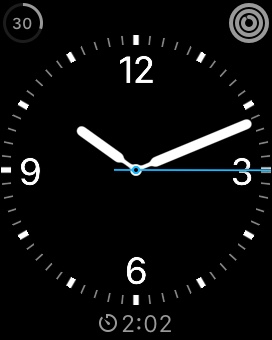
One of the biggest annoyances I find with the Apple Watch is that despite being billed as a ‘smart watch’, it’s often not very smart at all. Take for example complications (widgets that go on the watch-face). Currently you have to manually choose what goes where, like so:
This one shows that I have just over 2 minutes remaining on that timer (very useful when cooking, or when you’ve paid for park for a fixed amount of time):
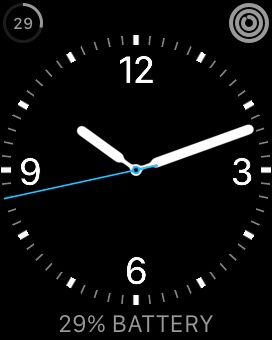
I could also configure it to show the remaining battery percentage, my favourite stock price, sunset time or various other tidbits of information. So what’s the problem? The problem is i need to configure it every time. It’s not just a case of setting a timer, and the watch automatically replacing the weather with the timer, I have to manually edit the settings each time (unless I save a different watch-face with each combination, in which case finding the right one would take just as long).
Instead I should be able to say ‘show me one of these things, depending on what’s happening’. So if I’ve set a timer, show that. If it’s going to rain, show the weather. If my battery is low, show the percentage. This would be a really cool addition in my view, and as far as I know it’s not been announced for watchOS 2.
I was attending a local meet-up of technology enthusiasts, and one of the people presenting was an experienced game developer. He had worked for a big games company in the US for years, and was now starting his own business as an independent developer. He preceded to talk about how games are made from first principles and about his experience as a games developer.
What was the first question from the audience? ‘What source control system do you use?’. The conversation then turned to favourite text editors. Really?? That’s when I felt out of place. I wanted to know how he would go about trying to integrate Unity with a native iOS UIKit Interface, what platform constraints the Xbox One has, the differences between developing for PS4 and Xbox One, but everyone seemed to want to ask trivial questions about infrastructure.
It made me think: There’s a difference between someone who is interested in technology for the sake of technology, and this is why we see 15 year old games being ported to JavaScript, and someone like me who is fascinated by what technology can do that’s new. How it’s done interests me of course, but that’s not what matters. The world undoubtedly needs both types of people, but it did make me think: I’m not a geek.
If you have the smaller version of the Apple Watch, then you may find the battery just about gets you through the day. Over the past 6 weeks of using it I’ve been experimenting with the various settings to find the best way to save battery life.
Note: Like with battery saving tips for phones, these tips will reduce functionality, so they’re not meant for daily use. Apple Watch has a built in power save mode, but with that switched on the watch is less useful than a £10 Casio watch (at least you don’t have to press a button to see the screen on one of those!). These tips are meant for those long days or weekends where you want to keep the watch going for as long as possible, while maintaining the fitness tracking and ability to receive notifications (these things are not possible in Power Save mode).
Turn off Wrist Raise
On the watch itself, under Settings > General you can turn off Wrist Raise. This makes the watch a lot less useful because you will have to press a button to see the screen, but if you are out and about on a weekend and don’t particularly care about the time, but want to make sure your fitness progress still gets tracked, it’s a great way to save significant battery life.
Use the X-Large watch face
If you can do without seeing the weather or other useful widgets on your watch face, the X-Large’s use of lots of black and no widgets means it uses far less battery juice, in my experience at least.
Use Power Saving Mode for workouts
In the Apple Watch app on your phone, choose the settings for the ‘Workout’ app, and select power saving mode. This stops the watch from continuously reading your pulse during workouts – very useful if you’re doing long runs or walks, as the heart rate monitor sucks battery life. It will mean however, that your calorie burn stats wont be as accurate.
Turn on Airplane Mode
This one is only slightly better than Power Save mode. You’ll still be able to track your activity, receive stand notifications or notifications for appointments already synced to your watch – obviously you wont get any alerts that come from your phone (such as messages). If you’re away camping for the weekend, maybe that’s OK?
Stay near your phone
I’ve noticed the battery life is a lot worse when I spend a lot of time away from my desk at work, but leave my phone at my desk. This makes sense – when the phone is within Bluetooth range, the watch will use this connection for things like alerts. When you move away from your phone, it instead has to connect to Wi-Fi directly. Wi-Fi is much less power efficient than Bluetooth.