Ever turned in your iPhone to see a calendar notices suddenly disappear from the lock screen? I’ve been seeing this a lot lately, and it’s really bugged me – especially when my phone is on silent (as it is most of the day), so I can check it at chosen intervals rather than be disturbed (developer thing, no doubt) .
Well it turns out iOS will remove a notification after the event has finished. Kind of makes sense, although it does mean if you totally miss an appointment, you’d be none the wiser unless you pay very careful attention and see it before the notification quickly disappears.
Odd quirk, but probably not a bug – just a design choice (I would say it makes sense to remove them from the notification centre, perhaps not the lock screen) and Apple should probably hide it before the screen turns in to avoid the confusion of seeing something for a split second.
Apple have finally updated their Podcasts App, and the good news is that it now works brilliantly. Before it used to crash, downloads would fail to start, and synchronisation between devices wouldn’t always work. The animated cassette player has also been removed, while I quite liked the animating, the app is much more intuitive without it (more akin to the original iPod App in iOS) and that’s got to be a good thing. The best feature of this app is by far the synchronisation of positions between devices. It mean you can listen to a show on your iPad at home in the kitchen, and when you go to the gym later on it has remembered where you got to.
The one thing the app is missing is the ability to download podcasts automatically without opening the app. iOS really could do with an API that allows apps to schedule in long, power-hungry tasks to be performed when the device is plugged in and idle.
Tu Go is a a great idea. It can turn your iPod, iPad, laptop, or Android Tablet into a phone. Call people as if you’re calling from your mobile, and have up to 5 devices ring when you receive a call, send and receive SMS messages and see a list of voicemails.
Unlike Skype, there’s no ‘free’ calls if you call someone else using the app, all calls are charged as if you made them on your phone, as are messages.
To me this is less of a challenge to Skype, but might have more of an impact on people using iMessage, BBM or Google Talk for messaging across their devices. Now instead of being locked into your device operating system vendor’s ecosystem (iOS, Android, Blackberry), you can be locked into your network operators (albeit far more interoperable) system instead. This is a nice idea, since SMS messages sent from this app can still be receive by someone with an old phone. I do like iMessage, the typing indicator is particularly useful for knowing whether to keep you phone out because you can see the other person is about to respond but I am seriously considering switching to this since my contract gives me unlimited SMS anyway.
It remains to be seen how this app will affect battery life. On iOS at least, VOIP apps get launched on system boot and can poll their sever a minimum of every10 minutes. On Android anything goes with regards to background activity. Of course users without a cellular network connection (most iPads sold) will only be able to receive calls when they’re in a WiFi area. If it had a big impact, I probably wouldn’t use it.
What this does blur the line between what a phone is, and what a tablet is. How long before we just buy a device with a 3G/4G connection, and download our favourite VOIP app for making calls with? With a Bluetooth headset, could the iPad mini be your next phone?
Google Glasses reminds me of something Microsoft would have released in the early to mid 00’s. The idea has merit, but it strikes me as not being thought through properly. Think Windows XP Tablet PC Edition, or the Origami.
Yes it’s a cool idea to be able to see a computer screen on a pair of glasses, as well as take video from your personal perspective – but will people really want to a) wear glasses all the time (for this to make sense, you need to wear it every waking hour of the day) b) interact with other people who may or may not be busy using their glasses while you talk to them c) interact with people who may or may not be videoing you while you’re talking to them.
Just as people didn’t want to prod a Desktop PC interface with a stylus, I can’t see these glasses being accepted by the masses in their current form. I think the idea does have merit, and would love to see something less intrusive that somehow manages to overcome these social barriers.
Google adverts for the glasses are an example of your typical “geek trying to make themself look overly extroverted to make up for being a geek” syndrome. How many people go skydiving that often? How many people if they did would wear such an expensive pair of glasses? Most normal people (like me) whose daily routine doesn’t involve jumping out of a plane, walking down a catwalk or juggling with fire will struggle to find a use for such a device.
Still, kudos to Google for putting them out there, just as with the Tablet PC in 2002, someone else might just make it work by 2023. Also I admit I haven’t tried them, so I might yet be converted. Better start saving…
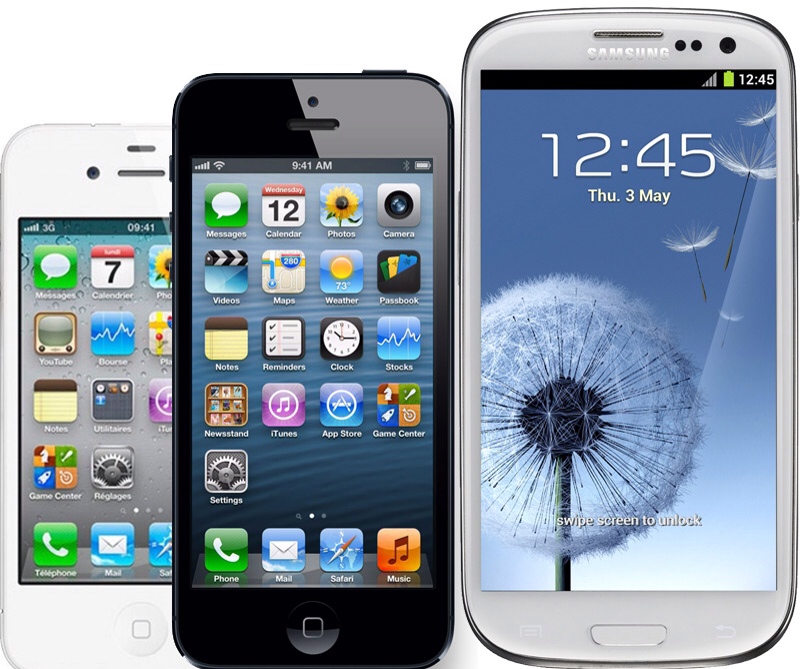
Apple seems to be getting a lot of bad press recently because of their refusal to release a larger iPhone. That and the fact that iOS is apparently getting ‘stale’ because hasn’t changed much since its release in 2007.
I completely disagree with this criticisms – and here’s why: Firstly, when it comes to a phone, I don’t believe bigger is better. What matters to me is the portability of the device, coupled with software which is of a high standard and turns this ‘black mirror’ into something useful. If anything, quality and resolution of the screen matters far more than the dimensions.
When people start talking up screen sizes, it reminds me of the TV market, where people routinely buy the biggest screen they can get for their money, even if it means the screen will disproportionately intrude into their living room. There hasn’t been much innovation in TVs in the past 6 years, we’ve seen half-hearded attempts at ‘app’ ecosystems, but ultimately people just want to sit passively and watch stuff, not mess about with apps. Since the iPhone was released in 2007, introducing multitouch, inertia scrolling and a touch screen that didn’t need a stylus, we haven’t seen any other big changes in paradigm. The iPhone 4 got a super high resolution screen that made reading text all the more pleasurable. Apart from that, in terms of hardware at least, we’ve gotten thinner, lighter and faster and that’s all.
With phones, the quality of the apps and ease of use is what makes the difference – not the size of the thing. Price also plays a part – a big part. Having used Android for the past 18 months (HTC Desire S, and a Nexus 7) I can’t help but be drawn back to iOS, purely because th software is so much better.
At the time of getting my Android phone I wasn’t too happy about the state of the iOS ecosystem. Apple was banning apps left right and enter, and the iPhone 4 didn’t excite me much. I took the plunge and switched to Android, and was immediately pleased with what I got. Over time however I came to regret that decision. What I took for granted in iOS was missing from Android – quality.
Quality is a difficult concept to describe. We all know it when we see it, but it isn’t always obvious to see when you’re looking for it. In the case of my HTC Desire S, quality means the small details in the user interface that you would never notice until you have to do without – take for example making a phone call to someone who isn’t available, I’d go to my recent contacts list (3rd in the list), tap their name, and wait while it rings. After 20 seconds it would hit voicemail. This was an urgent call, so I wanted to call back straight away. I hit ‘Hangup’ and went back to the recent call list, thinking to tap the name – still 3rd in the list. Just as I tap it however, it moved from 3rd in the list to 1st, and I end up calling someone else instead. The phone was just slow. It may have been dual-core compared to my single-core iPhone 3GS, but that comparison is like sitting a motorbike and a lorry next to each other with the same engine, and expecting them to hit 60 at the same time.
Then there was the lack of updates – it took a year for me to get Android 4.0 and when I finally did it was through a HTC developers site (and made the phone even slower).
The on-board software was buggy and confusing. There seemed to be 2 of everything. A HTC Twitter app, the official Twitter app. A HTC mail client, and GMail, HTC Facebook and well, you get it. On the other hand with iOS you get minimalistic software that actually does useful stuff.
It wasn’t all bad of course, as by original blog post stated. You do get a lot more freedom, but I found myself not caring since Apple seems to be far more reasonable these days when it comes to App Store Approval (and I actually quite like the fact that Apps can’t take over system functions so easily).
Here are 5 things you may not have known about your iPad.
Go direct to notifications from the Lock Screen
You can slide individual notifications to open the associated app instantly. Not very discoverable, but very useful!
Keep folders in the Dock
Access your favourite apps from any of the home screens by keeping a folder in the dock.
Limit what your friends can see or do
Lending your iPad out to someone? With “Guided Access” you can limit users to only one app, and even specify which parts of the screen will respond to touches. You simply triple-click the Home-button and enter your PIN to return to normal. Find this under “General > Accessibility”
Remind yourself where that app is
Spotlight on iOS leaves a lot to be desired for when searching for apps. Thankfully it will tell you which folder an app is in, if any. Just check the column on the right – if there’s no folder mentioned, then it’s not in one.
Give presentations with a projector
The iPad, along with Apple’s Keynote app can be used to give presentations. With the Apple VGA Adapter (or the HDMI adapter) you can display your slides on the projector, and view your presentation notes on the iPad’s screen. With the iPad 2 and above you can also display any app on the TV/projector.
I’ve been using the new Microsoft Surface running Windows RT this weekend, so I thought I’d post by initial thoughts. This was one borrowed from the office.
I’d installed Windows 8 on my laptop and my first thoughts weren’t that good. The ‘Metro’ interface was vastly different to Windows 7, and having to right-click to get menus to appear seemed counter-intuitive. I couldn’t even work out how to copy a hyperlink from the built-in mail client. Having now used Windows 8 on a touch device for the first time, it finally made sense.
Based on ARM, the Surface only runs apps downloaded from the Microsoft App Store. You get Office Home and Student bundled, although these run in desktop mode. The only reason I can assume they run on the desktop is because Microsoft didn’t have time to port them to Metro (no simple task, I’m sure). It does however make the surface confusing, since the desktop only shows up as 1 app when you use the Metro task switching functionality, when in reality you could have 3 or 4 apps open on the desktop.
The unique trick that surface has up its sleeve of course is the Touch Cover - a cover similar to the SmartCover for the iPad, that is also a keyboard with a trackpad. The Surface goes from tablet to notebook with ease. (note, I didn’t say laptop, you won’t want to use this on your lap, it’s too unstable). Windows RT can also run two apps side by side, and have multiple user accounts on one device.
So while the hardware is certainly unique and very useful indeed, Windows RT can be confusing. This is compounded by a lack of apps. I am typing this now on an iPad, because there is no software that I could find in the Microsoft App Store that will let me connect and post to WordPress. This lack of software will hopefully be a temporary problem, and once this gets fixed and Office comes to Metro, the desktop can be removed and this tablet can stop being a split personality.
If you forget the desktop, and forget office then you have a promising device for consuming media. Sometimes it feels a bit laggy, like when rotating the screen or launching apps, but only occasionally - most of the time it feels pretty snappy. Whether not people who have invested in content on Android and iOS will want to put that aside and buy content from Microsoft is anther question. In theory if you buy a film on the Surface, you should be able to watch it on your Xbox 360. Browsing the web is frustrating because there seems to be no way to set Google as your search provider - this really would be a deal breaker for me, because Bing just isn’t as good, and not having decent search at your fingertips is like forgetting to wear a watch, you really miss it when it’s gone. Favourites are also difficult to find (you have to focus the address bar, and then swipe to the right, they cannot be grouped into folders). I prefer the iPad here, but this is an early version of IE for Metro despite the version being 10, I’m sure this will improve with time.
So is the device for? It’s not gong to replace a PC for power-users, and the lack of Outlook/Desktop software will probably off business users. That leaves casual home users (would-be iPad buyers) - though I wonder whether the lack of a 7 inch version might sway those users towards the cheaper iPad Mini or the Kindle Fire. One group who this is made for however is students. This device is perfect for taking to lectures, typing up coursework and doing research on.
Overall I’m impressed, though I think I’ll stick with. My iPad for now (despite that fact it feels really old now) and wait and see what Surface version 2 looks like.
If like me you have an Android phone but also have an iPad, then you might find that getting photos you take on the phone onto the iPad a chore. Having photos on the iPad means you can take advantage of the beautiful screen and powerful software like iPhoto for which there simply is no alternative for on Android.
Yes you can use the built in Dropbox app, but it’s very clunky and doesn’t let you sort by date. With this solution, photos you take on your Android phone will appear in your iCloud photo stream, which is a far more elegant solution.
What we will do here is essentially make your Dropbox Camera Uploads folder the same folder as your iCloud PhotoStream uploads folder.
Note: I got this working by using my Windows 8 PC with Dropbox installed – it should work fine for Windows 7, and instructions will be different for Mac OS X but it should still be possible. Follow this guide at your own risk!
Step 1: Install Dropbox on your phone
If you haven’t done so already, install Dropbox on your Android device and make sure automatic camera uploads is switched on. This will create a new folder in your Dropbox called ‘Camera Uploads’
Step 2: Install iCloud Control panel on your PC
I already had iTunes installed, so this was a case of running Apple software update and selecting ‘iCloud Control Panel’
Step 3: Remove the iCloud Uploads folder
Open the iCloud control panel and find the location of your photo stream on disk:
Kill the any iCloud.exe and ApplePhotoStream.exe processes from the task manager, and then browse to your photostream folder and delete the ‘Uploads’ folder.
Step 4: Recreate uploads folder
Now the magic happens, open an administrative command prompt and create a junction that will recreate the Uploads folder, only showing the contents of your Dropbox’s ‘Camera Uploads’ folder.
The first path is where I want the uploads folder to go, and second is where my camera uploads folder in Drobox is. Remember: you haven’t made to copies, if you delete from one, it gets deleted from the other.
Step 5: That’s it…!
Now any photo you take will be uploaded to your PC, from your PC it will be sent to iCloud. and from iCloud it will find its way onto your iOS devices.
Despite my earlier post, there are times when it’s wise to put a case on your tablet. On the beach, for example. Suncream and iPads really don’t mix, and putting an unprotected device into a bag with suncream will end in disaster (I know from experience). So I thought I would try Apple’s Smart Case, the version of the Smart Cover that fully encloses the entire device. It’s not cheap, but being an Apple product you generally get top-quality goods, and it can also be engraved at no extra charge.
Upon receiving the case, I was mightily disappointed. For a start, it feels very cheap. It’s not very sturdy: with the Smart Cover you can stand the iPad up and use it as a picture frame or to watch a film. The Smart Case apparently supports this function, but the iPad seems very precarious in this position; any slight nudge of the table would send it crashing to the floor. The Smart Case also adds an enormous bezel around the screen, making the iPad’s display seem small. It also seems to trap a lot of dust on the screen, and it doesn’t wipe the screen clean when you open and close it as the cover does. Speaking of opening it, it’s not obvious which side to open it from, and once you have discovered that you will need long nails to release the magnetic closure.
On the plus side, it does protect the iPad well, even the back. However, I can’t recommend this product for day-to-day use, and given how poor it is, it seems excessive to shell out for it on occasional trips to places such as the seaside. I’m not sure what has happened at Apple; it’s certainly not up to their usual standards (but it’s still at their usual prices). I have now reverted to using a Smart Cover and it’s like I have a brand-new iPad.